A secure residential RDP combines a maintained operating system, restricted remote access, malware protection, and recoverable data. Residential connectivity describes the outbound network. It does not replace Windows security controls or protect an exposed login endpoint by itself.
Windows 10 Pro provides familiar administration tools, but configuration matters. This guide starts with checks that are unlikely to interrupt access, then moves to changes that require a backup and a recovery route. Do not apply a copied firewall or encryption script to the only machine holding your credentials and recovery instructions.
First verify the operating system’s support status
Standard Windows 10 Home and Pro support ended October 14, 2025. For a 2026 deployment, confirm applicable Extended Security Updates coverage or choose a supported operating system. An activated Windows installation does not, by itself, demonstrate ongoing security-update entitlement.
Record the edition, installed updates, and person responsible for maintenance. Confirm that the browser and business applications still support the chosen OS. Complete these checks before adding production passwords, customer exports, or other sensitive files.
1. Check Microsoft Defender rather than assuming it is healthy
Open Windows Security and review Virus & threat protection. Check the active protection provider, protection history, and security-intelligence update status. If an organization manages these settings or uses another security product, follow its policy rather than forcing conflicting antivirus configurations.
In an authorized PowerShell session, Get-MpComputerStatus reports Defender’s protection state and related status fields. Microsoft’s cmdlet reference documents the output. Investigate disabled services or stale definitions instead of treating the command’s successful execution as proof that the machine is secure.
Where Defender is the intended active product, Update-MpSignature requests current definitions and Start-MpScan -ScanType QuickScan starts a quick scan. See Microsoft’s update and scan documentation. Review results and address warnings; a clean quick scan is not an exhaustive compromise assessment.
2. Understand the remote-access path before changing ports
Your provider may forward an external connection port to a different port inside Windows. For example, an assigned external endpoint can reach the guest’s normal RDP listener through host-side forwarding. Changing the Windows listener alone does not automatically update the provider’s forwarding rule and can disconnect you.
| Layer | What it controls | Who must confirm it |
|---|---|---|
| Provider firewall or gateway | Which external clients can reach the service | Provider or authorized infrastructure administrator |
| Host port forwarding | How the assigned external endpoint maps to the guest | Provider or host administrator |
| Windows Firewall | Traffic permitted at the Windows guest | Guest administrator, coordinated with the provider |
| RDP authentication | Which Windows accounts may establish a session | Guest administrator |
| Residential outbound routing | The route applications use to reach websites | Provider or authorized network administrator |
Keep Windows Firewall enabled. Prefer an approved gateway or VPN with MFA where supported, or a carefully maintained source-IP allowlist. Confirm the source address Windows actually sees behind a gateway or forwarding layer before applying a guest allowlist. Test a new connection while a recovery console remains available; do not remove the working access path first.
A different port number is not a substitute for authorization. Keep Network Level Authentication enabled; Microsoft recommends NLA to authenticate before the remote session is established. NLA is not MFA, and MFA on the billing website does not automatically protect Windows sign-in.
3. Plan BitLocker recovery before enabling encryption
BitLocker protects encrypted volumes against offline access. Its usefulness depends on the hosting platform, boot configuration, and recovery-key handling. Read Microsoft’s BitLocker guidance and confirm provider support before changing the system volume.
- Create an approved backup and confirm that it can be restored independently of this Windows login.
- Confirm TPM or virtual-TPM support, the intended unlock method, and access to a recovery console.
- Store the recovery key in an approved external vault accessible to the authorized owner. Do not keep the only copy on the volume being encrypted.
- Use the Windows BitLocker management workflow with the agreed settings, then schedule and verify any required restart through the recovery-capable access path.
Do not enable a preboot interaction that nobody can complete remotely. Disk encryption also does not make an unlocked, running hosted desktop inaccessible to every privileged administrator. Protecting stored disks and trusting the live hosting environment are different security questions.
4. Reduce everyday privileges and unnecessary data paths
Use a standard account for routine work and a separate administrator identity for maintenance. Review who belongs to remote-access and administrator groups. Disable drive, printer, clipboard, or device redirection when the task does not require it. Keep recovery codes outside the desktop and use an approved password manager rather than plaintext notes.
Test offboarding as well as onboarding: a departing operator’s application permissions and Windows access should both be revocable. Keep a record of material changes, backup checks, and unexpected sign-ins. Our remote-work security guide explains the broader operating process.
Arrange evaluation before purchase: ClovRDP’s refund policy excludes Cheap Residential. Eligible requests have a 12-hour deadline and 100 MB usage limit; provided Windows installation charges are non-refundable and issue review applies. Confirm how the Residential/Premium delivery-time IP provision interacts with these exclusions. A full security pilot is not an unrestricted money-back trial.
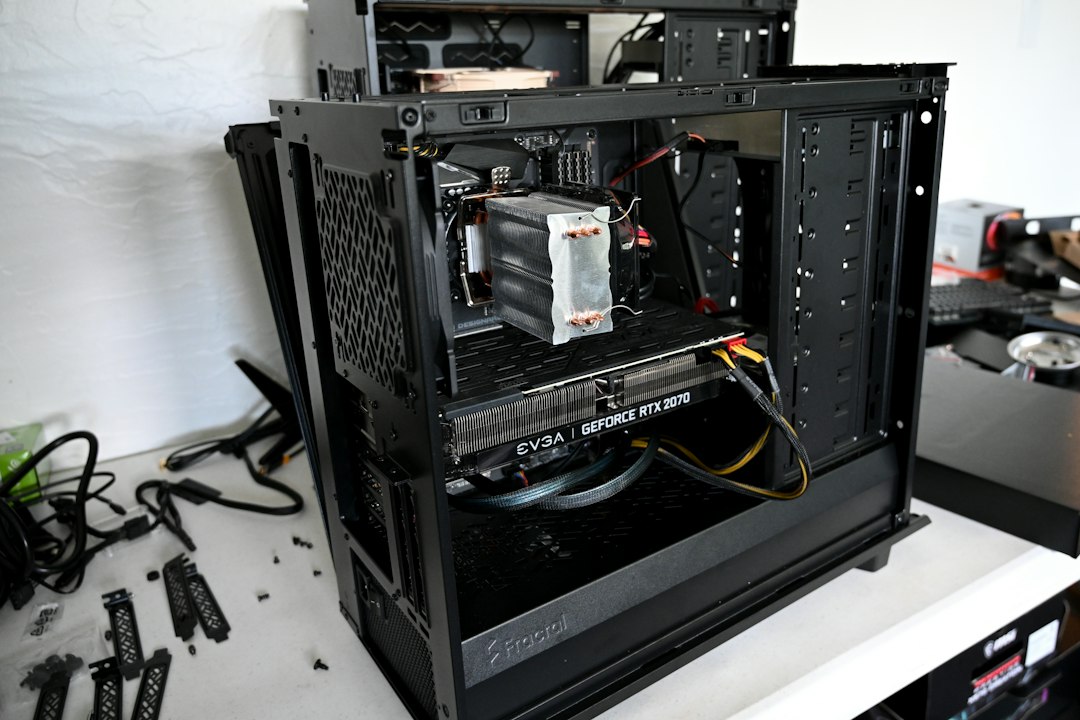
Illustrative hardware photograph by Nathan Anderson on Unsplash; not a specification of supplied ClovRDP hardware.
Choose a workspace you can secure and recover. Review ClovRDP Windows configurations, confirm update and console support, and agree the access design before adding sensitive work.