Author: David V

  • Windows 10 Pro on Residential RDP: Built-In Security Features You Should Be Using

    Windows 10 Pro on Residential RDP: Built-In Security Features You Should Be Using

    A secure residential RDP combines a maintained operating system, restricted remote access, malware protection, and recoverable data. Residential connectivity describes the outbound network. It does not replace Windows security controls or protect an exposed login endpoint by itself.

    Windows 10 Pro provides familiar administration tools, but configuration matters. This guide starts with checks that are unlikely to interrupt access, then moves to changes that require a backup and a recovery route. Do not apply a copied firewall or encryption script to the only machine holding your credentials and recovery instructions.

    First verify the operating system’s support status

    Standard Windows 10 Home and Pro support ended October 14, 2025. For a 2026 deployment, confirm applicable Extended Security Updates coverage or choose a supported operating system. An activated Windows installation does not, by itself, demonstrate ongoing security-update entitlement.

    Record the edition, installed updates, and person responsible for maintenance. Confirm that the browser and business applications still support the chosen OS. Complete these checks before adding production passwords, customer exports, or other sensitive files.

    1. Check Microsoft Defender rather than assuming it is healthy

    Open Windows Security and review Virus & threat protection. Check the active protection provider, protection history, and security-intelligence update status. If an organization manages these settings or uses another security product, follow its policy rather than forcing conflicting antivirus configurations.

    In an authorized PowerShell session, Get-MpComputerStatus reports Defender’s protection state and related status fields. Microsoft’s cmdlet reference documents the output. Investigate disabled services or stale definitions instead of treating the command’s successful execution as proof that the machine is secure.

    Where Defender is the intended active product, Update-MpSignature requests current definitions and Start-MpScan -ScanType QuickScan starts a quick scan. See Microsoft’s update and scan documentation. Review results and address warnings; a clean quick scan is not an exhaustive compromise assessment.

    2. Understand the remote-access path before changing ports

    Your provider may forward an external connection port to a different port inside Windows. For example, an assigned external endpoint can reach the guest’s normal RDP listener through host-side forwarding. Changing the Windows listener alone does not automatically update the provider’s forwarding rule and can disconnect you.

    LayerWhat it controlsWho must confirm it
    Provider firewall or gatewayWhich external clients can reach the serviceProvider or authorized infrastructure administrator
    Host port forwardingHow the assigned external endpoint maps to the guestProvider or host administrator
    Windows FirewallTraffic permitted at the Windows guestGuest administrator, coordinated with the provider
    RDP authenticationWhich Windows accounts may establish a sessionGuest administrator
    Residential outbound routingThe route applications use to reach websitesProvider or authorized network administrator

    Keep Windows Firewall enabled. Prefer an approved gateway or VPN with MFA where supported, or a carefully maintained source-IP allowlist. Confirm the source address Windows actually sees behind a gateway or forwarding layer before applying a guest allowlist. Test a new connection while a recovery console remains available; do not remove the working access path first.

    A different port number is not a substitute for authorization. Keep Network Level Authentication enabled; Microsoft recommends NLA to authenticate before the remote session is established. NLA is not MFA, and MFA on the billing website does not automatically protect Windows sign-in.

    3. Plan BitLocker recovery before enabling encryption

    BitLocker protects encrypted volumes against offline access. Its usefulness depends on the hosting platform, boot configuration, and recovery-key handling. Read Microsoft’s BitLocker guidance and confirm provider support before changing the system volume.

    1. Create an approved backup and confirm that it can be restored independently of this Windows login.
    2. Confirm TPM or virtual-TPM support, the intended unlock method, and access to a recovery console.
    3. Store the recovery key in an approved external vault accessible to the authorized owner. Do not keep the only copy on the volume being encrypted.
    4. Use the Windows BitLocker management workflow with the agreed settings, then schedule and verify any required restart through the recovery-capable access path.

    Do not enable a preboot interaction that nobody can complete remotely. Disk encryption also does not make an unlocked, running hosted desktop inaccessible to every privileged administrator. Protecting stored disks and trusting the live hosting environment are different security questions.

    4. Reduce everyday privileges and unnecessary data paths

    Use a standard account for routine work and a separate administrator identity for maintenance. Review who belongs to remote-access and administrator groups. Disable drive, printer, clipboard, or device redirection when the task does not require it. Keep recovery codes outside the desktop and use an approved password manager rather than plaintext notes.

    Test offboarding as well as onboarding: a departing operator’s application permissions and Windows access should both be revocable. Keep a record of material changes, backup checks, and unexpected sign-ins. Our remote-work security guide explains the broader operating process.

    Arrange evaluation before purchase: ClovRDP’s refund policy excludes Cheap Residential. Eligible requests have a 12-hour deadline and 100 MB usage limit; provided Windows installation charges are non-refundable and issue review applies. Confirm how the Residential/Premium delivery-time IP provision interacts with these exclusions. A full security pilot is not an unrestricted money-back trial.

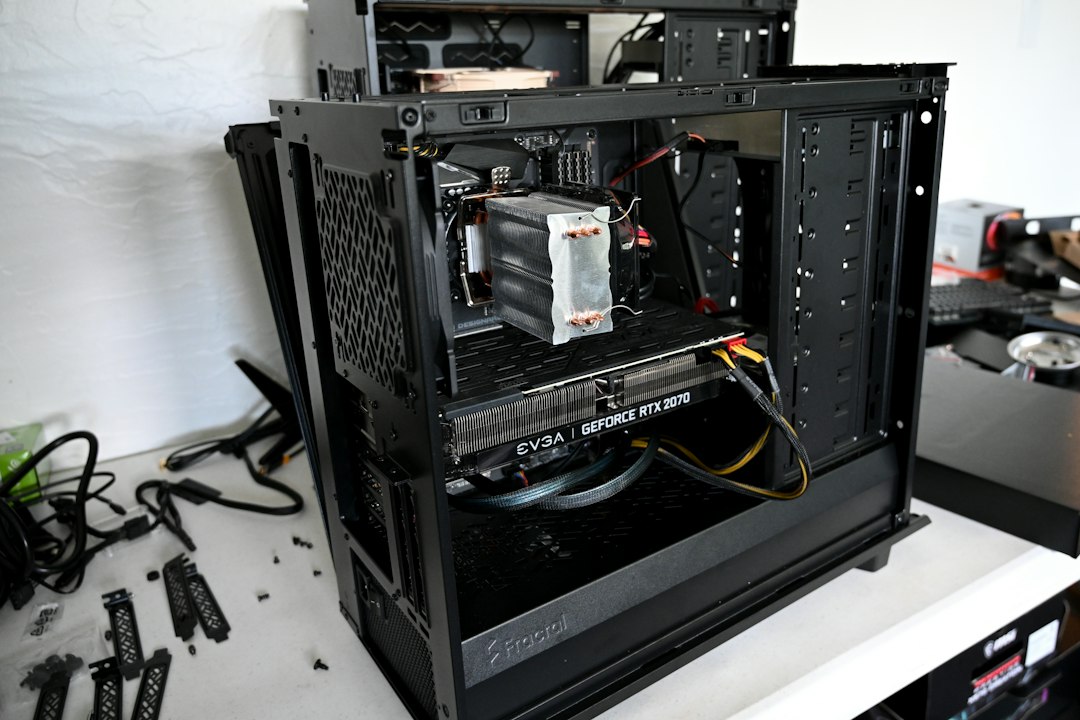
    Illustrative hardware photograph by Nathan Anderson on Unsplash; not a specification of supplied ClovRDP hardware.

    Choose a workspace you can secure and recover. Review ClovRDP Windows configurations, confirm update and console support, and agree the access design before adding sensitive work.

  • Tired of IP Blocks? When to Switch from a Datacenter VPS to a Residential RDP

    Tired of IP Blocks? When to Switch from a Datacenter VPS to a Residential RDP

    Switch from a datacenter VPS to a residential RDP when the job genuinely requires a residential network context and a full remote desktop—not simply because a website returned an error. Authentication failures, rate limits, account restrictions, and network classification are different problems. A new IP cannot reliably solve all of them.

    A virtual private server supplies a computing environment. A residential RDP supplies an interactive desktop with residential outbound connectivity. These categories can overlap: a virtual Windows desktop may run in a datacenter and route application traffic through a residential exit. The physical machine, remote-access endpoint, and outbound address need not share a location.

    First establish what is actually blocked

    Capture the error message, timestamp, affected account, and permitted action you were attempting. An HTTP 403 response means the server refused the request; it does not identify a datacenter-IP rule by itself. An HTTP 429 response indicates rate limiting and may include instructions about when to retry.

    For your own application, inspect server or firewall logs to determine which rule applied. For a third-party platform, read its notice and contact its support team. Stop automated requests when authorization or permitted volume is unclear. Rotating addresses to defeat a rate limit is not troubleshooting the underlying contract or access rule.

    Observed problemFirst investigationWould residential routing necessarily fix it?
    Invalid or expired credentialsAccount status and supported authentication processNo
    Rate-limit responseDocumented quotas, scheduling, and approved API accessNo; follow the service’s limits
    Account restrictionOfficial notice, evidence, and appeal processNo
    Incorrect regional content on an authorized testNetwork country, account region, cookies, and locale settingsPossibly relevant, if network location is the requirement
    Explicitly documented network allowlistAsk the owner to approve the required connectionOnly if that arrangement is permitted

    When a datacenter VPS remains the better fit

    A well-configured VPS can be appropriate for server applications, approved API integrations, scheduled processing, and workloads that do not need a human-operated Windows GUI. There is little reason to buy residential routing when an API already supports your legitimate server connection and its rate limits fit the job.

    Review the resources and support requirements rather than assuming every datacenter address has poor reputation. A stable server architecture with proper credentials and documented quotas can be simpler to maintain than a desktop introduced only to change network appearance.

    When a residential desktop adds practical value

    A residential workspace can be useful for authorized regional website checks, hands-on browser reproduction, or compatible Windows workflows requiring a specified residential exit. The desktop keeps browsers, downloaded test files, screenshots, and supporting tools together. This can improve reproducibility compared with several personal computers using inconsistent settings.

    Confirm what traffic follows the residential route and what happens if that route becomes unavailable. A label on the order does not establish IPv6 coverage, an exclusive address, or a permanent assignment. Our proxy versus RDP comparison explains why the execution environment and routing service are separate choices.

    Plan the migration around evidence

    1. Inventory the job. List applications, dependencies, data, access permissions, and the exact reason residential connectivity is needed.
    2. Define acceptance. Specify the permitted target, expected country, required desktop resources, and an agreed lightweight delivery check.
    3. Confirm the quote. Separate recurring resources, Windows installation, optional GPU, backup services, and any other required charges.
    4. Secure the new environment. Verify updates, change initial credentials, restrict remote access, and establish recovery before transferring sensitive material.
    5. Move a permitted test first. Compare the same task and record both application behavior and interactive responsiveness.
    6. Retain a rollback path. Back up data and keep the old environment until the new workflow meets the agreed requirements.

    Do not transfer all saved sessions and secrets without checking whether they remain necessary. Reissue credentials through approved processes where appropriate. Keep an independent copy of configuration instructions so an unavailable desktop does not also remove your migration plan.

    Compare ClovRDP’s tiers without assuming the outcome

    ClovRDP’s Cheap Residential offer advertises an entry price from $10.99 and describes shared residential IP connectivity with dedicated allocated resources. That is a starting offer, not an independently verified market minimum or a complete quote for every Windows configuration.

    Compare premium options when their documented ISP characteristics or an appropriately sized configuration match the project. More expensive connectivity does not repair an unsupported application, an account restriction, or inadequate RAM. Confirm the Windows configuration and its applicable security-update coverage: standard Windows 10 support ended October 14, 2025, as recorded in Microsoft’s lifecycle documentation.

    Budget migration costs include the refund conditions

    ClovRDP’s refund policy excludes Cheap Residential from refunds and replacements. Eligible requests must be made within 12 hours and are excluded above 100 MB usage; provided Windows installation charges are non-refundable and issue review applies. Read the Residential/Premium delivery-time IP provision with those conditions. Arrange larger tests before purchasing rather than assuming a migration trial is refundable.

    Illustrative hardware photograph by Tai Bui on Unsplash.

    Upgrade for a requirement you can name. Compare ClovRDP’s residential plans, confirm the approved workflow and complete price, and migrate only when the new architecture solves the measured problem.

  • QA Testing Localized Web Apps with Windows 10 Residential RDPs

    QA Testing Localized Web Apps with Windows 10 Residential RDPs

    A Windows residential RDP is a remotely accessible desktop with residential outbound connectivity. For quality assurance, it can provide a repeatable place to inspect a web application from a specified network context. It complements browser emulation, proxies, automated tests, and physical devices rather than replacing every one of them.

    Localized applications can vary by language, country, timezone, account preferences, and browser capabilities. Treating all those inputs as an IP-address setting makes failures difficult to reproduce. A useful QA plan records each input separately and verifies which one actually controls the result.

    Choose the environment for the question being tested

    EnvironmentStrong use caseImportant limitation
    Browser emulationRepeatable viewport, locale, timezone, and permission scenariosDoes not reproduce every physical device or network characteristic
    Residential proxy with an existing runnerAdd a network route to an established test environmentDoes not supply the runner or automatically route every application
    Windows residential RDPHands-on GUI reproduction with files and tools in one workspaceIts browser and hosted hardware are only one environment
    Physical mobile deviceReal touch, display, sensor, and mobile-browser behaviorRequires separate device access and test management

    Playwright documents emulation controls for device parameters, locale, timezone, permissions, and geolocation. These are valuable for testing an application you are authorized to examine. A hosted GUI adds interactive investigation; it does not make those controlled tests unnecessary.

    Build a localization matrix before changing settings

    Start with the supported markets and the rules your application is supposed to implement. For each scenario, record the network country, requested language, timezone, account region, browser version, viewport, and expected content. Keep a test account’s billing or registered country distinct from the browser’s language.

    For example, a Canadian network with a French-language browser may be a legitimate test of a bilingual interface. It is not equivalent to changing an account’s registered country to France. A German date-format issue may be caused by application formatting rather than the source IP. Isolating those variables prevents network changes from masking software defects.

    Step 1: prepare authorized targets and test data

    Use your own application, an approved client target, or a staging environment covered by written permission. Create test accounts and synthetic data designed for the scenarios. Avoid real payment details and customer exports in screenshots. Define permitted automation volume and a stopping condition for unexpected load or access restrictions.

    Document the build or release being tested. A screenshot from a different deployment is not a valid comparison merely because the URL looks similar. Keep the environment identifier with the test results and identify any feature flags that affect localization.

    Step 2: verify the desktop and the actual outbound route

    Confirm the Windows edition, application versions, allocated resources, and expected exit country. The RDP connection endpoint and the address your application sees may differ. Observe the outbound address through an approved diagnostic endpoint or your own server logs, and record its timestamp.

    Do not infer city-level accuracy or browser geolocation from an ISP label. If the application requests device location, test that feature separately with the browser’s permission model. Record IPv4 and IPv6 behavior where relevant, and ask the provider which traffic uses residential routing.

    Step 3: run the customer journey, not just the homepage

    • Entry and redirects: verify the intended language and region selection without redirect loops.
    • Forms: inspect address formats, validation messages, dates, numbers, and keyboard behavior.
    • Content and layout: check translated text length, fonts, clipping, navigation, and accessible labels.
    • Commerce in a test environment: verify currency display and supported-region messages using authorized test data.
    • Exports and documents: examine generated files, filenames, encoding, and locale-sensitive formatting.

    A full Windows workspace is useful when the journey crosses from a browser to a spreadsheet or downloaded document. Keep the original input and the resulting file together so a developer can reproduce the mismatch without guessing how it was generated.

    Step 4: capture a reproducible defect report

    Include the expected result, actual result, exact steps, build, timestamp, browser context, and relevant network observation. Attach sanitized screenshots and logs. Remove authentication cookies, bearer tokens, and personal information before sharing evidence outside the approved team.

    Repeat the scenario while changing one variable at a time. Compare application logs when available. If a problem appears only in one RDP session, investigate driver, browser, resource, and remote-display differences before labeling it a country-specific application defect.

    When graphics acceleration matters

    WebGL scenes, interactive maps, video, and other graphics-heavy interfaces may need a particular browser graphics path. ClovRDP advertises an optional GPU add-on for compatible workloads. Confirm the GPU arrangement, guest driver, supported APIs, and behavior inside an actual RDP session rather than assuming every residential plan provides it.

    A larger configuration may help resource-heavy tests, but it does not prove real-device equivalence. Continue testing physical devices required by your support matrix. Also separate application frame rendering from the network and encoding delays involved in viewing it remotely.

    Choose and evaluate the workspace deliberately

    Compare ClovRDP premium configurations when their documented network offering fits the test matrix. Confirm Windows installation charges and applicable ESU coverage for Windows 10, whose standard support ended in October 2025. Our architecture comparison helps choose between a desktop and a proxy-backed runner.

    The refund policy excludes Cheap Residential and limits eligible requests to 12 hours and no more than 100 MB usage; provided Windows installation charges are non-refundable and issue review applies. Read the Residential/Premium delivery-time IP provision alongside those conditions. Arrange a resource-heavy test before buying rather than assuming it fits the refund allowance.

    Illustrative photograph by Daniel Eliashevskyi on Unsplash.

    Build a QA workspace around your supported markets. Compare ClovRDP’s configurations, document the required browser and network conditions, and evaluate the exact customer journey you need to reproduce.

  • What is a Residential RDP? The Ultimate Guide for 2026

    What is a Residential RDP? The Ultimate Guide for 2026

    A residential RDP is a remotely accessible desktop whose outbound internet traffic uses a residential internet connection or residential-IP routing service. You operate the desktop over Remote Desktop Protocol, while applications run on the remote computer. It combines a working environment with a particular network location; it is not simply another name for a proxy.

    For a remote worker, that can mean returning to the same files and applications from different devices. For a marketer, it can mean an organized workspace for authorized client tasks and regional website checks. The right purchase depends on three separate questions: what computer you receive, where its traffic exits, and what the service terms actually cover.

    Residential IP and Remote Desktop Protocol: the essential definitions

    A residential IP is an address associated with a consumer internet-service-provider network. A datacenter IP is associated with hosting or cloud infrastructure. These labels describe network characteristics, not whether the person using an address is trustworthy. Classification databases can disagree or become outdated.

    Remote Desktop Protocol, or RDP, lets a client display and control a remote Windows desktop. Your keyboard and mouse input go to that computer; screen updates come back. Microsoft documents access to remote applications, files, and network resources through its Remote Desktop guidance.

    The important distinction: the address you connect to with your RDP client can differ from the outbound address websites see. Ask about both. A desktop in a datacenter can use residential-IP routing without being physically installed in a home.

    Datacenter vs. residential RDP: what changes?

    QuestionDatacenter connectivityResidential connectivity
    Where does traffic appear to originate?A hosting or cloud networkAn ISP-associated residential network or residential exit
    Typical reason to choose itGeneral hosting, remote administration, and predictable infrastructureAuthorized regional testing and workflows needing residential network context
    Is the address exclusive?Depends on the planDepends on the plan; residential does not mean dedicated
    Is access to every website guaranteed?NoNo; identity checks and platform rules still apply
    Does the label determine speed?No; resources and routing matterNo; resources, routing, and exit performance matter

    Do not buy residential connectivity merely because someone says datacenter addresses always cause bans. Security decisions can combine several signals. For example, Microsoft’s documented identity-risk detections include unfamiliar sign-in properties, anonymous addresses, and unusual travel. That illustrates layered assessment; it does not reveal the private algorithms of every social network.

    Why a full Windows 10 Pro workspace can be useful

    A familiar desktop instead of a traffic-routing accessory

    With a Windows 10 Pro configuration, your browser, spreadsheets, downloads, and compatible desktop software live together in one environment. You can work on an export, compare a landing page, and prepare a client report without distributing those files across personal machines. Check each application’s current OS support and licensing before relying on it.

    An easier separation between personal and client work

    Dedicated workspaces can reduce accidental cookie mixing, misplaced downloads, and work performed in the wrong client account. This is operational separation, not anonymity. Authorized users and administrators may still access the environment, and account providers can recognize the same business through its declared identity and activity.

    Practical controls, with a 2026 support requirement

    Windows Pro supports Remote Desktop hosting and administrative controls. However, standard Windows 10 support ended on October 14, 2025. For 2026 use, verify applicable Extended Security Updates eligibility and enrollment, or choose a supported operating system. A Windows 10 Pro label alone is not evidence of current security coverage.

    Useful residential RDP workflows

    • Remote work: maintain a defined workspace with controlled access and a documented backup process.
    • Localized web testing: check your own site’s language, redirects, currency presentation, and regional content from an approved location.
    • Client account administration: use official business permissions and clearly labeled workspaces for accounts you are authorized to operate.
    • Desktop-based quality assurance: reproduce a browser issue alongside logs, screenshots, and compatible Windows tools.

    A residential RDP is a poor substitute for platform permission, a security program, or a backup. It also may not be the economical choice for large automated test suites that already run successfully in a controlled server environment with an approved proxy.

    ClovRDP’s budget-to-premium choices

    ClovRDP’s Cheap Residential RDP page advertises entry pricing from $10.99 as checked on October 3, 2026. It describes a shared residential IP, dedicated allocated CPU, RAM and NVMe resources, and administrator access. Treat the displayed starting price as an entry point, not an all-inclusive quote for every operating-system or resource selection.

    The Residential RDP and Premium Residential RDP ranges offer alternatives for buyers with different connectivity requirements. Premium’s product page describes selected-country ISP sourcing and a delivery-time IP-quality claim. Ask which assessment service, sharing arrangement, location, and performance specification apply to your order; a premium label is not a measured latency result.

    For the desktop experience discussed here, confirm the Windows 10 Pro configuration, installation charge, licensing rights, and update coverage. Do not assume Windows is included in every advertised base price. Start with the least expensive configuration that meets your actual workload, then upgrade the resource or network characteristic that is limiting your work.

    Read the refund terms before testing

    ClovRDP publishes a refund policy effective October 2, 2026. Cheap Residential RDP is excluded from refunds and replacements. For eligible services, requests must be made within 12 hours of delivery; usage exceeding 100 MB removes eligibility, and provided Windows 10 Pro installation charges are non-refundable. Issue review also applies.

    The policy separately describes a delivery-time VPN/proxy-detection guarantee for Residential RDP and Premium Residential RDP. Read that guarantee alongside the exclusions and confirm their interaction before paying. This is not a blanket risk-free trial. Avoid large downloads or speed tests before understanding how the usage limit is measured.

    A sensible first-session checklist

    Confirm the delivered edition, resources, approved outbound country, and login endpoint against the order. Change the initial password, verify the server certificate through the provider, keep Network Level Authentication enabled, and restrict inbound access through an approved gateway or allowlist. Check for updates before adding sensitive credentials. Agree a lightweight acceptance test with support if refund eligibility matters.

    Frequently asked questions

    Does residential RDP mean a dedicated residential IP?

    No. Desktop resources, inbound connection addresses, and outbound IP exclusivity are separate specifications. Obtain explicit confirmation of each.

    Can it guarantee that accounts will never be flagged?

    No. A different network connection cannot guarantee account acceptance, remove verification requirements, or authorize activity prohibited by a platform.

    Hero photograph: Arthur Lambillotte on Unsplash. Illustrative workspace, not a screenshot of a supplied ClovRDP desktop.

    Ready to choose your workspace? Compare ClovRDP residential plans, confirm the Windows configuration, and review the applicable refund terms before ordering. Choose with a clear understanding of both the benefits and the conditions.

  • How to Safely Manage Multiple Social Media & Ad Accounts Using Residential RDPs

    How to Safely Manage Multiple Social Media & Ad Accounts Using Residential RDPs

    A residential RDP can give an authorized marketing team a consistent Windows workspace with residential outbound connectivity. It cannot make accounts invisible, bypass verification, or guarantee protection from bans. The useful objective is a repeatable, auditable workflow that keeps client assets and permissions organized.

    Managing several brands becomes risky when staff share passwords, save client files in the wrong folder, or approve changes from the wrong browser session. A thoughtfully managed remote desktop can address those operational problems. Its value comes from the combination of a familiar working environment, deliberate access controls, and documented network configuration.

    Why unfamiliar connections can prompt account checks

    An IP address is only one part of an account’s security context. Microsoft’s published identity-risk documentation includes anonymous IPs, unusual travel, and unfamiliar sign-in properties. These examples explain why network context can matter, but they do not establish how any particular social-media platform scores a login.

    A datacenter address does not automatically mean an account will be banned. Likewise, a residential address does not establish that a user is authorized. New devices, stolen sessions, unusual activity, payment issues, and policy breaches are distinct concerns. Avoid providers that promise an IP alone will solve them all.

    Consistency, not concealment: keep a documented work environment for legitimate client activity. Do not create replacement accounts to evade enforcement or misrepresent who owns a business.

    Start with official business access

    Before renting desktops, establish who owns each account and what your agency is authorized to do. Use the platform’s supported business or partner-access features rather than distributing the owner’s personal password. For example, Google Ads manager accounts support managing linked client accounts and assigning different access levels.

    The residential RDP sits underneath that permission model. It is where an authorized team member works, not a replacement for the client’s invitation or for the platform’s rules. Keep a client approval record, name a recovery contact, and record who can change billing or add other users.

    Choose the right separation boundary

    ControlWhat it helps withWhat it does not guarantee
    Official account rolesAuthorized access and revocationA secure endpoint by themselves
    Separate browser profilesReducing cookie and session mix-upsA strong security boundary against local administrators or malware
    Separate Windows workspacesSeparating client files, tools, and operating proceduresDifferent public outbound IPs unless specified
    Residential outbound routingA documented residential network contextAccount approval, anonymity, or exemption from verification
    MFA and recovery controlsReducing reliance on a password aloneProtection against every session-theft or phishing scenario

    For clients with different confidentiality requirements, a separately administered desktop can be easier to audit than a single machine containing every client session. For a small team working inside one official manager account, separate desktops for every advertising account may add cost without improving authorization. Select a boundary that addresses the actual data risk.

    Build the workflow in six steps

    1. Document the client and the permitted tasks

    Create a short record containing the client name, asset IDs, authorized staff, approval contacts, and permitted activities. Keep billing permissions separate from routine campaign editing wherever the platform allows it. A desktop should have an accountable owner, not a password passed informally between contractors.

    2. Confirm the desktop and network specifications

    Ask the provider to distinguish the RDP connection address from the outbound residential IP. Record the selected country, sharing arrangement, expected persistence, and what happens if residential routing fails. Do not assume several desktops receive different public addresses. For a location-dependent project, obtain permission for that location before working there.

    3. Secure remote access before adding credentials

    Use named accounts, strong unique passwords, and an approved access gateway with MFA where available. Keep Network Level Authentication enabled; Microsoft recommends NLA because it authenticates users before establishing the remote session. NLA itself is not MFA. Restrict unnecessary device, drive, and clipboard redirection.

    4. Organize tools without falsifying identity

    Name workspaces and browser profiles after the real client or project. Use approved password storage and keep recovery codes outside the desktop in an organizational vault. Do not synchronize every client’s saved passwords into a personal browser account. Use accurate account and business details rather than attempting to disguise common ownership.

    5. Keep a change and incident log

    Record significant access changes, desktop replacements, outbound-IP changes, and account warnings. When a platform requests verification, stop and follow its official process. Preserve the warning and relevant timestamps, notify the client, and investigate the actual cause instead of repeatedly changing networks or creating another account.

    6. Offboard completely

    Remove the departing person’s platform permissions and desktop access, revoke active sessions where supported, and rotate shared secrets that cannot be individually revoked. Confirm retention and deletion of exported client data. Cancelling the RDP subscription alone does not revoke access granted directly on an advertising platform.

    Why Windows 10 Pro can fit the workflow

    A configured Windows 10 Pro desktop brings browser work, spreadsheet analysis, screenshots, and compatible client tools together. That familiarity can simplify an agency’s operating procedure. It still needs a security lifecycle: standard support ended October 14, 2025, so verify applicable ESU coverage or use a supported OS. Check software compatibility separately.

    Selecting a ClovRDP tier without overbuying

    Compare ClovRDP’s budget range for lighter workloads with Premium Residential for requirements matching its documented ISP offering. Select enough desktop resources for your actual dashboards and exports. Confirm Windows 10 Pro configuration and charges; the advertised starting price is not automatically the total for every option.

    Before ordering, read the refund policy. Cheap Residential has no refund or replacement eligibility. Eligible services have a 12-hour request window, a 100 MB usage limit, issue review, and non-refundable provided Windows installation charges. Residential and Premium Residential also have a delivery-time VPN/proxy-detection provision; confirm how it interacts with those conditions. Do not treat it as protection against a social platform’s later decisions.

    Can one residential RDP safely hold several accounts?

    It can be appropriate for accounts you are authorized to manage, provided platform rules, access roles, and data-separation requirements are satisfied. There is no universal rule requiring one IP per account, and there is no universal residential-IP exemption from enforcement. Document the arrangement instead of relying on a stealth claim.

    Hero photograph: Carlos Muza on Unsplash. Illustrative analytics workspace.

    Give your authorized client work a dedicated place. Explore ClovRDP Premium Residential, confirm the required Windows and network configuration, and review eligibility and exclusions before ordering.

  • Residential Proxy vs. Residential RDP: Which is Better for Web Testing and Automation?

    Residential Proxy vs. Residential RDP: Which is Better for Web Testing and Automation?

    A residential proxy routes configured network requests through a residential exit. A residential RDP gives you a remote desktop whose applications use residential outbound connectivity. Choose a proxy when you already have a suitable execution environment and need a network route. Choose an RDP when you also need an interactive desktop, local files, and compatible Windows tools.

    For web testing and automation, neither option is universally better. The decision depends on where your browser runs, which requests must follow the selected route, whether a human needs to inspect the session, and how you will reproduce a failure.

    The architecture: routing service versus complete workspace

    How a residential proxy fits into a test

    Your browser or test runner remains on your laptop, server, or continuous-integration worker. You configure supported requests to use the proxy endpoint. The proxy changes the route for that traffic; it does not supply a Windows desktop, additional local RAM, or automatic separation of all browser state.

    Proxy support is application-specific. Playwright’s network documentation, for example, describes HTTP and SOCKS proxy configuration. Check whether DNS resolution, WebSockets, UDP-based protocols, downloads, and auxiliary applications follow the intended route. Do not assume one browser setting reroutes the entire computer.

    How a residential RDP fits into a test

    You connect to a remote computer and run the browser or tools there. The desktop handles execution and file storage; RDP carries the interactive session between you and that machine. The applications’ outbound connectivity is a separate path. Depending on the provider, residential routing may itself use proxy infrastructure.

    These are not mutually exclusive technologies. A remote desktop can use a proxy, and a residential RDP may be implemented that way. ClovRDP’s residential product pages identify proxy-based IP connectivity; ask which traffic the supplied configuration covers.

    Residential RDP vs proxy: comparison table

    FactorResidential proxyResidential RDP
    Execution environmentYou supply the computer and test toolsA remote desktop is part of the service
    Browser stateManaged by your browser profiles or test contextsManaged inside the remote workspace; still requires deliberate separation
    Interactive inspectionUses your existing local or remote interfaceFull desktop available through RDP
    Traffic coverageOnly supported, configured trafficDepends on the desktop’s routing configuration
    Automation scalingOften fits an existing test-runner fleetRequires sizing and managing desktop instances
    Files and toolsRemain in your execution environmentCan remain together on the remote desktop
    Performance to evaluateRunner resources, proxy route, and target responseThose factors plus the operator-to-desktop connection
    Security responsibilitySecure the runner, credentials, and proxy configurationAlso secure remote access, desktop accounts, storage, and the OS

    Choose a proxy for an existing automated testing environment

    If your organization already runs reliable tests in controlled workers, adding residential routing may be the smaller change. You can preserve the existing build process, dependency management, and result collection while testing an approved regional route. The proxy should solve a specific network requirement rather than become an excuse to ignore the target site’s permissions or rate limits.

    Keep separate test contexts for independent scenarios and create fresh test data where necessary. A proxy does not clear cookies, undo a logged-in session, or give unrelated tests independent application state. Also review credentials: proxy usernames and passwords belong in your secrets-management process, not in committed scripts or screenshots.

    Choose an RDP for hands-on reproduction and Windows workflows

    A full desktop is useful when a tester needs to reproduce a customer journey, inspect a downloaded document, run a compatible Windows application, and discuss the result with a colleague. Screenshots, logs, and the browser can remain together in a defined project workspace. This can make handoffs clearer than passing a proxy address to several differently configured personal machines.

    With ClovRDP, confirm the Windows 10 Pro configuration and required resources rather than assuming every starting price includes that OS. A desktop workspace is not perfect isolation: shared administrators, synchronized browser profiles, malware, and exported files can cross operational boundaries.

    Windows 10 standard support ended October 14, 2025. Verify applicable ESU enrollment or select a supported OS before putting a 2026 testing environment into production. Separately check your browser and automation framework’s current Windows support.

    A reproducible regional web-testing workflow

    1. Define the authorized target. Use a site you own, a staging environment, or a client system covered by written testing permission. Specify a test account and permitted request volume.
    2. Separate variables. Record network country, language, timezone, browser version, viewport, and application account region instead of treating them as one setting.
    3. Confirm the actual exit. Compare the outbound IP observed by an approved diagnostic endpoint with the expected country and routing arrangement.
    4. Run a defined scenario. Use the same page path, account state, and test data. Check redirects, currency presentation, localization, downloads, and application errors.
    5. Save evidence safely. Retain timestamps, sanitized logs, and screenshots. Remove authentication tokens, customer information, and payment data.
    6. Repeat and compare. Change one variable at a time. A different result from another country does not establish that the IP alone caused it.

    For a site that uses browser geolocation, the network country is not the only input. The Geolocation API has its own permission and location behavior. Test that separately on an authorized application instead of assuming a proxy changes every location signal.

    Measure two different types of speed

    Test execution speed is how quickly the remote or local runner completes its work. Interactive responsiveness is how quickly your input and screen updates travel across RDP. A test may finish quickly inside a desktop that feels sluggish from your location. Conversely, a responsive desktop may still reach a distant website through a slow exit route.

    Keep the same workload and collect separate observations for the two paths. Buying a premium network option without measuring the bottleneck may leave the actual problem unchanged. Do not transfer Azure-specific RDP tuning assumptions to a generic hosted desktop without confirming the supported topology.

    Compare ClovRDP’s plans and acceptance conditions

    Use Cheap Residential for requirements compatible with its explicitly shared IP and budget positioning; assess Premium Residential when its documented ISP offering matches your project. Neither classification proves unlimited bandwidth, exclusive addresses, a particular application success rate, or suitability for every automation framework.

    ClovRDP’s refund terms exclude Cheap Residential. Other eligible requests have a 12-hour deadline, a 100 MB usage ceiling, issue review, and non-refundable provided Windows installation charges. The Residential and Premium delivery-time VPN/proxy-detection provision should be read with those conditions. Arrange any substantial test before purchase; an automated suite can exceed a small allowance quickly.

    The decision in one sentence

    Use a residential proxy to add routing to an environment you already manage; use a residential RDP when the complete remote workspace is itself part of what you need.

    Hero photograph: Luke Chesser on Unsplash. Illustrative performance-analysis screen.

    Need an interactive testing workspace? Compare ClovRDP residential RDP configurations, confirm protocol coverage and Windows requirements, and check the applicable acceptance and refund conditions before ordering.

  • Securing Your Remote Workforce with Windows 10 Pro Residential RDPs

    Securing Your Remote Workforce with Windows 10 Pro Residential RDPs

    A secure residential RDP workspace requires a supported, patched operating system, controlled remote access, appropriate user permissions, and a tested recovery process. A residential IP describes the outbound network; it does not secure the computer. For Windows 10 Pro in 2026, verifying security-update coverage is the first step, not an optional finishing touch.

    Windows 10 lifecycle notice: standard Windows 10 Home and Pro support ended October 14, 2025. Confirm applicable Extended Security Updates eligibility and enrollment, or choose a supported operating system before handling sensitive work. See Microsoft’s lifecycle record and ESU guidance.

    A full Windows workspace can still be valuable where compatible desktop software and familiar operating procedures matter. Centralizing the environment can make onboarding and handoffs more consistent. Those benefits depend on configuration and management; moving work off a laptop does not automatically make it private, backed up, or resistant to compromise.

    Understand what you are securing

    There are at least three separate boundaries: the employee’s device, the connection into the remote desktop, and the desktop’s connection to websites and business systems. Residential routing mainly affects the last boundary. A compromised employee device can still expose credentials or capture a screen, while an exposed remote-access endpoint can receive unwanted connection attempts regardless of its outbound IP.

    Ask who administers the underlying host, how provider access is controlled, where data is stored, and what backups are actually included. Treat the provider as part of the trust model. Disk encryption does not make an actively running hosted desktop inaccessible to every privileged operator.

    Windows controls: benefits and limits

    ControlUseful roleDeployment check
    Network Level AuthenticationAuthenticate before establishing the remote sessionKeep enabled; NLA is not multi-factor authentication
    Windows FirewallRestrict traffic to explicitly permitted access pathsPreserve management access and test allowlist changes safely
    Standard user accountsReduce everyday exposure to administrator privilegesUse a separate administrator identity for maintenance
    Endpoint protectionMonitor and block supported malware threatsVerify health, update status, and the organization’s response process
    BitLockerProtect encrypted volumes against offline accessConfirm platform support, boot behavior, recovery-key custody, and restore procedures
    Security updatesAddress covered vulnerabilitiesFor Windows 10 in 2026, verify the applicable ESU arrangement

    Microsoft’s Remote Desktop guidance recommends NLA. Its BitLocker documentation explains disk-encryption requirements and recovery considerations. Controls must be selected for the actual hosted environment rather than enabled blindly from a generic checklist.

    Protect the remote-access entry point

    Prefer an organization-approved gateway, VPN, or other restricted access path with MFA where supported. When an IP allowlist is appropriate, limit access to approved source addresses and the provider-specified endpoint and port. Plan an out-of-band recovery route before tightening rules, so an address change does not lock out the administrator.

    Changing the port number alone is not an access-control strategy. Do not disable NLA, certificate checks, the firewall, or endpoint protection to make a connection appear easier or faster. Verify the expected server identity with the provider when a trust warning appears. An MFA-protected billing panel also does not automatically mean the Windows RDP login has MFA.

    Make user access individual and revocable

    Assign a named business owner to every workspace. Use unique credentials and least-privilege application roles. Separate routine work from administrative maintenance, and record who is permitted to install software, export data, or change recovery settings. Avoid a single shared administrator password used by an entire department.

    Confirm operating-system hosting and remote-access rights for your deployment. Do not assume that purchasing one Windows 10 Pro desktop provides a licensed multi-user session host. Size and license the actual workforce arrangement rather than modifying Windows to bypass session limitations.

    Control where business data can go

    Allow drive, printer, USB, audio, and clipboard redirection only when the task requires them. For sensitive work, reducing unnecessary redirection can make the data path easier to understand. Store passwords and recovery codes in an approved vault instead of text files on the desktop. Apply a retention policy to downloaded reports and temporary exports.

    Keep an independent backup appropriate to the data’s value and test a restore. A provider snapshot is not automatically an independent backup, and a synchronized folder can propagate accidental deletion. Document the recovery steps and the people authorized to request provider assistance.

    Use a repeatable onboarding and offboarding checklist

    • Before access: verify the ordered resources, Windows edition, applicable updates, network configuration, and recovery contact.
    • At onboarding: issue individual access, document permitted applications, enable appropriate MFA, and demonstrate the approved connection method.
    • During operation: review patch and protection health, investigate unexpected sign-ins, check backup results, and record material configuration changes.
    • At offboarding: revoke desktop and application access, end sessions where supported, rotate shared secrets, and preserve or remove business files according to policy.

    Test the checklist with a pilot workspace before expanding the rollout. Confirm that a new employee can work without administrator access and that a departing employee’s access can be removed without disrupting everyone else. Those operational checks are more useful than simply counting installed security products.

    Scale the configuration, not the assumptions

    ClovRDP’s budget residential range may fit light workloads that accept its shared-IP arrangement. Its premium range should be evaluated against specific ISP and workload requirements. Neither tier label establishes dedicated outbound addressing, a measured uptime commitment, backups, or a complete managed-security service.

    For each role, measure the applications used, simultaneous browser load, storage needs, and acceptable response time. Choose the least expensive configuration that meets those requirements and the organization’s security standards. Confirm Windows configuration, installation charges, and update entitlement in the final quote. Do not reduce essential controls simply to reach a lower starting price.

    Plan the evaluation before purchase

    ClovRDP’s published refund policy excludes Cheap Residential from refunds and replacements. Eligible requests have a 12-hour deadline, a 100 MB usage limit, issue review, and non-refundable provided Windows installation charges. Its Residential and Premium delivery-time IP-detection provision should be confirmed alongside those exclusions. An extended security pilot is not automatically covered by these terms.

    Hero photograph: Aliv Pandu on Unsplash. Illustrative office environment.

    Build a remote workspace your team can operate confidently. Compare ClovRDP Windows configurations, verify support and access requirements, and review the applicable commercial terms before your rollout.

  • How to Optimize Your Windows 10 Pro RDP Connection for Lower Latency

    How to Optimize Your Windows 10 Pro RDP Connection for Lower Latency

    You cannot achieve literal zero latency across a remote network, but you can reduce unnecessary delay and make a Windows RDP session feel much more responsive. Start by identifying whether the problem is the connection to the desktop, the desktop’s resources, or the application’s own network path. Then change one setting at a time and measure the result.

    Buying a faster-looking plan before finding the bottleneck can waste money. More RAM does not shorten a long network route. A premium residential IP does not automatically accelerate screen updates. A smaller display can reduce graphics traffic without fixing an overloaded disk. This guide helps distinguish those situations.

    Latency, bandwidth, jitter, and resource pressure

    Latency is the delay in moving information between endpoints. Bandwidth is the amount that can be transferred over time. Jitter is variation in delay. Packet loss and resource contention can add stalls that feel like network lag. A high download-speed result is not proof that an interactive desktop will respond smoothly.

    A residential RDP normally involves two paths: your device to the remote desktop, and the desktop’s applications to websites through the configured outbound connection. Test them separately. If typing in a local text editor inside the desktop is smooth but a particular website is slow, the RDP display connection may not be the primary problem.

    Match the symptom to the first check

    SymptomFirst checksAvoid assuming
    Typing and window movement both lagLocal connection, route to desktop, display size, host loadThe residential exit alone is responsible
    Desktop is smooth but websites load slowlyRemote browser, DNS, target response, outbound routingA higher RDP display setting will help
    Applications freeze during heavy workCPU, memory pressure, storage activity, concurrent tasksEvery freeze is packet loss
    Video is poor but documents work wellChanging-screen workload, encoding, decoding, graphics supportA generic CPU or IP upgrade guarantees smooth video
    Session disconnectsEndpoint reachability, logs, host availability, gateway and timeout policiesVisual tuning will resolve the disconnect

    1. Establish a repeatable baseline

    Record the client device, connection type, time of day, remote endpoint, display resolution, and workload. Repeat a small set of actions: type in a text editor, move a window, open a local document, and load an approved test page. Note whether the issue affects every action or only one application.

    Check Windows Task Manager inside the remote desktop while the problem occurs. Note sustained CPU load, memory pressure, and disk activity. Also check the client computer: an overloaded local machine can struggle to display a session even when the host is healthy. Keep observations rather than inventing a universal acceptable number.

    2. Check reachability without confusing it with performance

    From your local Windows computer, a small ICMP test can show round-trip variation when the provider permits replies. Run ping -n 20 RDP_HOSTNAME, replacing RDP_HOSTNAME with the supplied host. Microsoft’s ping reference explains the returned round-trip information. No reply may simply mean ICMP is filtered; it does not prove the RDP service is down.

    For a direct TCP endpoint, PowerShell can test the specified port: Test-NetConnection -ComputerName 'RDP_HOSTNAME' -Port 3389. Replace the host and use the actual provider-supplied port, which may not be 3389. A successful TCP probe confirms reachability at that moment, not usable credentials, low latency, or UDP performance. See Microsoft’s Test-NetConnection documentation. Gateway-based connections require checks appropriate to that gateway.

    3. Reduce unnecessary display work

    In the classic Windows Remote Desktop Connection client, open Show Options and review Display. Start with one monitor and a practical resolution, rather than sending several high-resolution screens when the task uses only one. Save a separate test connection profile so you can compare it with your original settings.

    Microsoft’s mstsc documentation also supports explicit dimensions, for example mstsc /v:RDP_HOSTNAME:3389 /w:1280 /h:720. Replace the host and port. These dimensions are a diagnostic starting point, not a mandatory quality target or a promise of a particular speed improvement.

    Under Experience, compare automatic connection-quality detection with reducing optional visual effects such as desktop backgrounds, animations, and full-window dragging. Keep text readable. Microsoft’s RDP bandwidth guidance explains why resolution and changing screen content affect traffic; its Azure-specific measurements are not ClovRDP benchmarks.

    4. Improve the local connection and choose an appropriate location

    Compare an approved wired connection with Wi-Fi when practical. Investigate congestion from large uploads, downloads, or other local users. Keep required organizational security tunnels in place; do not remove them merely to obtain a better test result. Instead, ask the administrator whether the approved route can be improved.

    A nearer desktop location can reduce the distance involved, but real routing and congestion still matter. Distinguish where the desktop is hosted from where residential traffic exits. Choose a location that meets both the interactive work requirement and any authorized regional-testing requirement.

    5. Confirm transport support instead of applying random tweaks

    Ask the provider which RDP transports and gateway topology are supported. Do not blindly open broad UDP ranges, disable UDP everywhere, or copy Azure Virtual Desktop Shortpath settings into an unrelated hosted-desktop setup. A transport change should address a documented issue and have a rollback plan.

    Keep Network Level Authentication, encryption, certificate validation, endpoint protection, and the firewall enabled. Security controls should not be traded for an unmeasured performance claim. Disable only unnecessary device or resource redirection that your workflow does not use.

    6. Upgrade the bottleneck you actually measured

    Reduce unnecessary background applications, schedule large synchronization jobs outside interactive work, and investigate repeatable resource saturation. Do not permanently disable security updates. For Windows 10 in 2026, verify the applicable update arrangement after its October 14, 2025 end of standard support.

    Choose more RAM for a demonstrated memory shortage, additional suitable compute for CPU-bound work, or provider assistance for storage contention. A GPU option should be evaluated against the specific application and remote-display path. It cannot eliminate network propagation delay.

    Selecting a ClovRDP plan and reporting a problem

    Compare budget and premium residential configurations against the measured workload, not an assumed zero-latency label. Send support the affected time range, connection endpoint, client version, sanitized test results, and resource observations. Never include passwords or account-session tokens in a public report.

    Plan substantial testing around the actual refund terms: Cheap Residential is excluded; eligible requests have a 12-hour window, a 100 MB usage limit, issue review, and non-refundable provided Windows installation charges. Read the Residential and Premium delivery-time IP guarantee with those exclusions. A large speed test can consume an allowance without diagnosing RDP responsiveness.

    Hero photograph: Bunny Lau on Unsplash. Illustrative desktop setup.

    Choose a smoother workspace based on evidence. Review ClovRDP Windows desktop options, match the configuration to your bottleneck, and confirm acceptance and refund conditions before ordering.

  • Premium Residential RDP: 7 Checks Before You Buy

    Premium residential RDP deserves a detailed review when your work depends on the remote environment. The useful questions concern residential routing, IP evidence, application performance, operational support, and the terms attached to the service.

    ClovRDP’s Premium Residential product advertises country-specific ISP sourcing and a 0 fraud score at delivery. Those details provide a starting point for evaluation. Ask for the evidence and service conditions relevant to your workload before making a purchasing decision.

    This premium residential RDP buying guide organizes that evaluation into seven checks. It is suitable for professionals assessing remote work, authorized advertising checks, permitted data collection, and other demanding desktop workflows.

    Verify residential routing and delivery-time IP evidence

    1. Confirm the delivered network arrangement

    Ask which address you will use to connect to the desktop, which address your applications will present to external services, and where the residential connection exits. Request the delivered ISP information and clarify how that information will be verified.

    Establish the allocation model as well. Ask whether the outbound address is exclusive or shared, how long it is expected to remain assigned, and how replacements or network interruptions are handled. Treat these as separate questions during the buying discussion.

    For an application with strict connectivity requirements, describe those requirements in writing. Include whether it supports an application-level proxy, requires system-wide routing, or depends on a consistent outbound address. The provider’s response should identify what its configuration supports.

    Record the answers against the exact service you order. This gives both sides an agreed reference when the desktop is delivered.

    2. Interpret the delivery-time reputation result

    A useful reputation report identifies the checked address, the checking service, the timestamp, and the relevant settings. Request those details when evaluating a zero-score claim. They make the result understandable and repeatable.

    IPQualityScore illustrates why the full report matters: its response documentation defines separate fields for fraud score, connection type, proxy and VPN classification, recent abuse, and shared connections. Its fraud score can also incorporate supplied information such as user agent and language.

    Interpret a delivery-time score within that documented context. Ask how a disputed result is handled and which checking method applies to the service’s guarantee. Keep any agreed testing conditions with the order record.

    For ongoing work, decide when reputation should be reviewed again and who will respond to a relevant change. This turns IP-quality screening into an operating procedure with a clear owner.

    Test desktop performance, stability, and operational fit

    3. Evaluate the session using your actual applications

    Begin with a small, representative evaluation approved by the provider. Use the same type of local connection, screen arrangement, and applications that your ordinary work requires.

    Assess typing responsiveness, scrolling, application switching, page loading, and any required file transfers. Record the time of the test and the working conditions. Repeat the same tasks during another relevant time period when the available evaluation arrangement permits it.

    Microsoft’s RDP guidance explains that bandwidth demand varies with workload and display activity. A text-focused session and a session involving frequent visual updates can place different demands on the connection. Use a test that resembles your own work when judging the result.

    Also separate the observations you collect. A delayed desktop response, a slow target website, and a resource-heavy application deserve their own investigation. Giving support a clear description of the affected activity helps narrow the problem.

    4. Check resource capacity and application compatibility

    List the applications, versions, and simultaneous processes you intend to run. Include any graphics requirements, storage needs, and background jobs. Ask the provider to assess the whole working session.

    For browser-based tasks, specify whether you plan to operate one interactive session or several concurrent browser processes. For permitted data collection, document the intended collection rate, scheduling, and transfer requirements. Agree on the supported workload before introducing it.

    Use any available evaluation to observe resource use during a realistic session. Record CPU activity, memory pressure, free disk space, and the behavior of your main application. Keep the results tied to the configuration tested.

    Graphics-dependent software needs a specific compatibility answer. Ask about the GPU allocation, installed driver, supported graphics features, and licensing requirements. Request confirmation for the application you intend to use before paying for graphics capacity.

    5. Define availability, security, and support expectations

    A requirement for guaranteed uptime should lead to a written service-level discussion. Ask what availability is measured, how interruptions are recorded, which exclusions apply, and what remedy is available when the commitment is missed.

    Consider the complete workflow during that discussion. The desktop may be reachable while its residential connection is unavailable, or a running application may need attention after a reboot. Establish which parts of the service are covered and who handles recovery.

    For illustration, a 99.9% availability target across a 30-day month permits 43.2 minutes of unavailability within that measurement period. The actual agreement must specify its own calculation, coverage, and exclusions. This calculation is an example for evaluating an SLA.

    Security requirements should be equally explicit. Confirm the account-management process, update responsibilities, and supported authentication controls. Microsoft recommends Network Level Authentication for most Remote Desktop environments because it requires authentication before the session is established.

    For corporate use, obtain the organization’s approval before introducing the environment. Ask its IT team to define requirements for endpoint management, approved applications, data handling, and recovery. Establish a named support channel and an escalation process for interruptions that affect your work.

    Review pricing, refund terms, and your ordering decision

    6. Price the configuration you intend to use

    ClovRDP’s published Premium Residential Starter currently begins at $27.99 per month. The product page displays Windows 10 Pro and GPU as separate $20 monthly options. Selecting both produces a displayed Starter amount of $67.99 per month, before other applicable checkout charges. Review the current Premium Residential configurations when making your comparison.

    Use the intended configuration when comparing offers. Record the operating system, resource tier, country, required add-ons, renewal period, and any transfer conditions. Ask whether a future upgrade affects the address, service configuration, or application installation.

    Check software licensing and security-update arrangements alongside the hardware specifications. Microsoft’s published lifecycle information places Windows 10 Home and Pro standard support ending on October 14, 2025. Establish how any proposed Windows 10 installation receives applicable security updates.

    Keep the final checkout details with your technical requirements. They form a useful purchasing record when the service is delivered.

    7. Review delivery testing and refund conditions

    ClovRDP publishes a delivery-time VPN/proxy-detection refund guarantee for Residential RDP and Premium Residential RDP. Its refund policy also describes a 12-hour request window, an exclusion for Windows 10 Pro installation charges, and a 100 MB data-transfer threshold for standard refund and replacement eligibility. Review the complete policy and clarify how these provisions apply to your intended evaluation.

    Plan the evaluation before starting substantial transfers. Ask for a provider-supplied performance report or an agreed testing allowance when your checks would involve significant downloads. Give the initial configuration and IP checks priority, and keep your order reference available.

    The published screening promise should also be operationally clear. Establish how to report a delivery-time classification problem, which information support needs, and how the applicable checking method is identified.

    Your intended use belongs in the final review. Corporate access should follow the employer’s requirements. Advertising verification should use an approved testing process. Data collection and retailer workflows should operate within the relevant permissions, software licences, and platform rules.

    A useful purchase decision leaves you with a defined configuration, documented network expectations, a workable support arrangement, and an understood policy. Those details give you a practical basis for deciding whether the service suits your work.

    Explore ClovRDP’s Premium Residential configurations and select the country and resources your workflow requires. Send your application, connectivity, and availability requirements to [email protected] before ordering so the delivered configuration can be checked against a clear specification.

  • How to Choose Cheap Residential RDP for Everyday Work

    Choosing cheap residential RDP starts with understanding the workspace you need. A freelancer reviewing client websites has different requirements from someone running several browser-based applications throughout the day. Your budget, country requirement, software, and access permissions should guide the decision.

    Residential RDP combines a remotely accessible desktop with residential network connectivity. ClovRDP’s Cheap Residential service uses a shared residential IP and provides dedicated CPU, RAM, and NVMe resource allocations with administrator access. That combination gives you several separate specifications to evaluate before ordering.

    This guide explains how to compare those specifications, calculate the monthly cost, and decide whether a budget residential desktop suits your everyday work.

    Understand the IP, desktop, and access included

    Establish how the remote workspace connects

    Microsoft’s Remote Desktop tools let you connect to another computer and use the account you are authorized to access. A working connection requires the remote computer to be available, Remote Desktop access to be enabled, and the relevant account and network permissions to be in place. Microsoft explains these prerequisites in its Remote Desktop setup documentation.

    Before buying residential RDP, ask the provider to explain the delivered connection arrangement. Confirm which address you use to sign in and which public address your applications use for outbound internet access. Also establish whether residential routing covers the entire desktop or only applications configured to use it.

    Keep those answers with your order details. They give you a clear reference when checking the delivered service and help support understand any later connection issue.

    Understand the shared-IP arrangement

    ClovRDP identifies the public residential IP in its Cheap Residential tier as shared. The listed desktop resources are allocated to your service, and administrator access is included. Review those details separately when comparing an alternative provider’s package.

    Ask how the address is assigned, whether it can change, and what happens when the underlying connection becomes unavailable. A workflow requiring a specific long-term address needs an explicit agreement about address continuity.

    For everyday browsing and authorized account administration, write down the requirements of the services you use. Check whether your client or employer permits a third-party remote desktop and a shared outbound address. Establishing this before purchase gives you a practical basis for selecting the tier.

    Decide how much administrative control you need

    Administrator access matters when your workflow includes installing approved software or changing system settings. Describe the applications you intend to use and ask about licensing, installation restrictions, and maintenance responsibilities.

    For routine work, consider using an ordinary user account where your applications support it. Reserve administrative access for installation and maintenance tasks. Keep account credentials private, and use individual authorized access arrangements when another person needs to work with you.

    The buying question is straightforward: can you run and maintain your required applications within the provider’s supported configuration? Obtain an answer for the actual application and version you plan to use.

    Match your workload to the plan and country

    Start with a representative working session

    Write a short description of a normal session. Include the applications you open together, the documents you work with, the amount of storage you expect to retain, and any background tasks. This turns an abstract resource comparison into a discussion about your own workload.

    Consider an illustrative freelance workflow involving a client dashboard, a spreadsheet, a document editor, and several reference pages. Use that combination as your evaluation scenario. A separate workflow involving multiple automated browser processes deserves its own capacity assessment.

    When a trial or provider-assisted demonstration is available, observe the working session over time. Record application responsiveness, memory use, and free storage. Ask how upgrades work before assuming that an entry-level subscription can be expanded immediately.

    Compare specific allocations

    At the time of review, ClovRDP lists its Cheap Residential Starter at $10.99 per month, with 2 CPU cores, 4 GB RAM, and 50 GB NVMe storage. Its Professional tier lists 4 CPU cores, 8 GB RAM, and 100 GB NVMe storage at $21.99 per month. Use these as concrete specifications to discuss against your application requirements, and check the current Cheap Residential plans before ordering.

    Ask what the CPU allocation represents and whether any fair-use limits apply. Confirm how much storage is available after the operating system and required applications are installed. Keep space for working files, application updates, and the backups or exports you intend to maintain.

    A sensible starting plan is one that accommodates your ordinary workload with some room for variation. Avoid basing the purchase entirely on a resource figure that your applications barely use.

    Choose the country for a defined reason

    ClovRDP’s Cheap Residential catalog currently lists the USA, United Kingdom, Germany, France, Netherlands, Canada, Australia, and Singapore. Availability should be checked for the configuration you intend to order.

    Start with the business requirement. A regional website review may call for a particular country, while routine administrative work may leave you several acceptable choices. Ask the provider to identify both the desktop-hosting location and the residential exit location.

    Then assess the connection from the place where you will actually work. Open your normal applications and evaluate typing, scrolling, navigation, and file access. Microsoft’s RDP bandwidth guidance shows that remote-display requirements vary with activity and display characteristics, making a representative session useful when assessing performance.

    Check total pricing, policies, and first-use requirements

    Calculate the complete monthly commitment

    Record the base plan, selected operating-system option, additional services, and applicable checkout charges. ClovRDP currently displays Windows 10 Pro as a $20 monthly add-on for Cheap Residential. Combining that option with the listed $10.99 Starter produces a displayed subscription amount of $30.99 per month, before any other applicable charges.

    Also confirm renewal pricing, cancellation timing, and the payment currency. Keep a copy of the exact configuration and price shown when you order. This creates a useful reference for both billing questions and future upgrades.

    Operating-system suitability deserves attention before selecting an add-on. Microsoft ended standard support for Windows 10 Home and Pro on October 14, 2025. For a Windows 10 deployment, establish the applicable security-update arrangements, including any relevant Extended Security Updates coverage. Consult Microsoft’s Windows 10 lifecycle notice when reviewing this requirement.

    Read the Cheap Residential refund conditions

    ClovRDP’s published refund policy excludes Cheap Residential RDP from its refund and replacement eligibility. The residential IP proxy-detection guarantee described for the other residential tiers also excludes Cheap Residential. Read the current policy before paying.

    This makes pre-purchase questions especially important. Confirm the country, required software, access permissions, delivery arrangement, and any essential connection requirements. Ask about uncertainty while you are still selecting the product.

    Keep a realistic first-use plan as well. Start by checking the delivered configuration and the applications needed for your ordinary work. Report a discrepancy promptly with your service reference and a concise description.

    Prepare a secure first session

    Use the provider’s verified delivery instructions and a supported Remote Desktop client. Microsoft recommends keeping Network Level Authentication enabled wherever possible; it requires authentication before a remote session is established.

    Plan how you will maintain updates, protect credentials, and retain important work outside the remote machine. Agree with clients or employers on how their information may be accessed and stored before placing it in the environment.

    Compare ClovRDP’s Cheap Residential plans, choose your country, and match the resources to your everyday workload. For application or configuration questions, contact [email protected] before ordering so you can select a plan with clear expectations.