Author: Jack S

  • How to Run Android Emulators on a Windows 10 Pro Residential RDP (BlueStacks & LDPlayer)

    How to Run Android Emulators on a Windows 10 Pro Residential RDP (BlueStacks & LDPlayer)

    Running an Android emulator inside a Windows residential RDP requires more than an IP address or a GPU. The hosted environment must expose the virtualization features the selected emulator needs, provide a supported graphics path, and have enough resources. Confirm provider and vendor support for the exact arrangement before purchasing or installing.

    BlueStacks and LDPlayer are Android-emulation products for Windows workflows. A hosted virtual machine adds another layer that a normal desktop requirements page may not explicitly support. This is a conditional setup guide, not a claim that every ClovRDP plan or every emulator version has been tested successfully.

    Understand the two different acceleration requirements

    CPU virtualization helps the emulator run its guest environment. When Windows itself is a virtual machine, the host may need to expose nested virtualization. GPU acceleration helps supported graphics rendering. Providing a virtual GPU does not automatically expose the CPU features required by the emulator.

    BlueStacks’ requirements identify memory, storage, graphics drivers, and virtualization considerations. Its statement about coexistence with VM software on the same PC should not be read as a blanket certification for running BlueStacks inside any hosted VM. LDPlayer’s virtualization guide explains the role of VT; on a rented guest, host-side enablement is a provider question, not something a Windows application can guarantee.

    RequirementCheck before installationCommon mistaken assumption
    CPU virtualizationRequired features are exposed and the emulator supports the environmentA GPU automatically provides nested virtualization
    GraphicsSupported guest driver and emulator rendering backendAn adapter name proves every API works over RDP
    ResourcesRAM, CPU, and storage for Windows plus the emulator and appAll advertised host memory can be assigned to one emulator
    Windows featuresCompatibility with the selected emulator version and security configurationEvery release requires the same Hyper-V settings
    Application permissionThe app permits emulator and hosted useA residential IP overrides an application’s restrictions

    Step 1: confirm the exact supported configuration

    Tell the provider the emulator name and release, intended Android application, required graphics API, and expected workload. Ask whether nested virtualization is available and supported on the selected plan. Confirm whether the application permits this use. A successful installation on another VPS does not establish compatibility with a different host or driver stack.

    Read the vendor’s current release notes rather than assuming settings from an older tutorial remain applicable. BlueStacks graphics choices vary by Android instance and release; LDPlayer also offers different release lines. Do not install a beta solely because it is newer when the workload requires a validated stable configuration.

    Step 2: prepare Windows and preserve recovery access

    Confirm the OS edition, available resources, and applicable updates. Windows 10 standard support ended October 14, 2025, so verify ESU coverage or a supported alternative. Keep a backup and an approved recovery console before changing drivers or Windows virtualization features.

    Check the installed display adapter for errors and obtain the provider-approved guest driver. A virtualized GPU can require a driver matched to the host environment. Do not replace it with an arbitrary consumer driver or disable endpoint protection to make an installer run. If Hyper-V or another security-dependent feature conflicts with the selected release, ask for a supported configuration rather than applying blanket disable instructions.

    Step 3: install one emulator from its official source

    Download from the official BlueStacks or LDPlayer site. Check the publisher information and install the agreed version. Start with one instance and a small permitted test application. Do not import sensitive accounts or large production data sets before the environment has passed basic checks.

    Allocate resources conservatively, leaving capacity for Windows, security software, and the remote session. Record the emulator version, Android instance type, CPU allocation, memory, and display settings. This makes later troubleshooting more useful than repeatedly reinstalling without a baseline.

    Step 4: select a supported rendering path

    Use the emulator’s documented graphics settings for the chosen instance. BlueStacks documents separate graphics and interface renderers, with available options depending on the instance. Save changes and restart the emulator when required. Do not assume a DirectX option exists in every release or that selecting OpenGL automatically enables hardware rendering.

    Test a simple scene first, then the actual authorized application. Keep resolution and frame-rate expectations realistic for the available graphics resources and remote-display path. Change one setting at a time and retain the last working configuration.

    Step 5: diagnose black screens and frame drops by layer

    If the emulator cannot start, investigate virtualization exposure and version compatibility. If it starts but renders incorrectly, examine the driver, selected renderer, application requirements, and logs. If the application reports smooth rendering but the remote view stutters, investigate RDP encoding and the network path. A GPU upgrade cannot fix every one of those causes.

    Some applications intentionally restrict emulators or protected content. Respect those restrictions; do not disguise the environment to defeat them. A clean residential IP does not repair an unsupported renderer or establish permission to use an emulator.

    ClovRDP plan and test conditions

    ClovRDP advertises an optional GPU add-on for compatible workloads. Confirm emulator support, nested virtualization, and GPU availability on the exact residential plan; none is established by the lowest advertised price. Our RDP performance guide helps distinguish graphics issues from connection lag.

    Arrange installation testing before purchase. The refund policy excludes Cheap Residential and limits eligible requests to 12 hours and 100 MB usage, with issue review and non-refundable provided Windows installation charges. Emulator downloads can exceed that allowance. The Residential/Premium delivery-time IP provision is not an instant refund promise for application incompatibility.

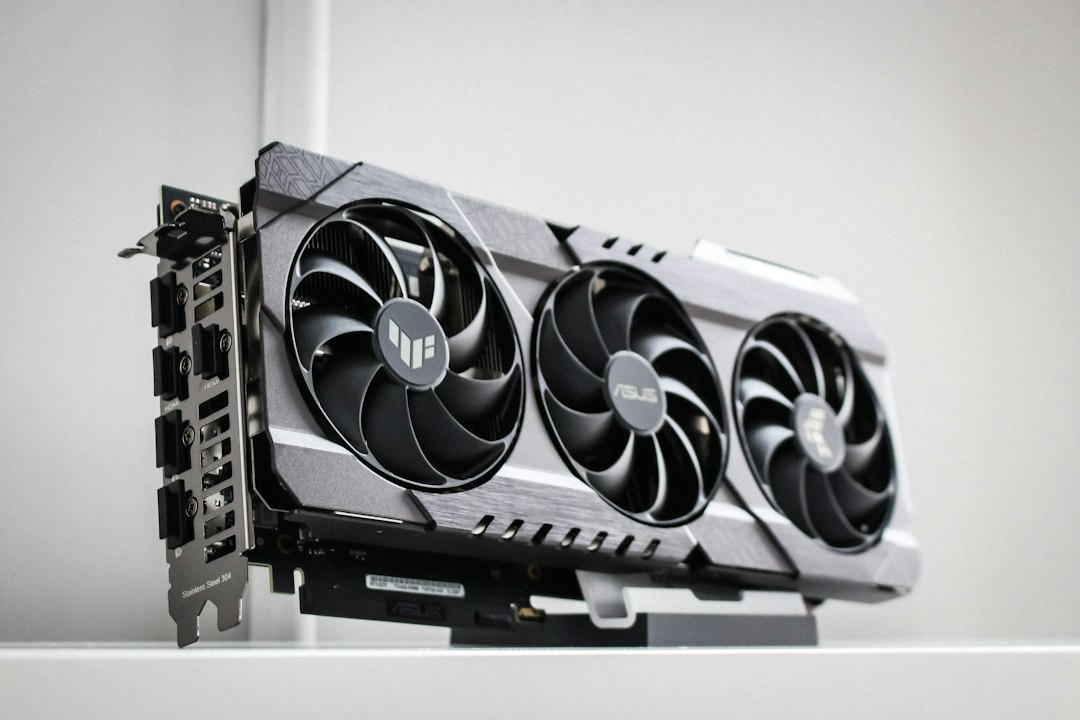
    Illustrative graphics-card photograph by Thomas Foster on Unsplash; not the specification of a supplied GPU.

    Start with compatibility, then choose capacity. Ask ClovRDP to confirm the emulator, nested-virtualization, and graphics requirements before selecting your Windows workspace.

  • The 2026 Checklist for Buying a Residential RDP: vGPU, 0 Fraud Score, and ISP Purity

    The 2026 Checklist for Buying a Residential RDP: vGPU, 0 Fraud Score, and ISP Purity

    A good residential RDP purchase starts with a verifiable specification: the desktop resources, graphics capabilities, outbound network, operating-system support, and commercial terms your work requires. Labels such as vGPU, zero fraud score, and pure ISP become useful only when the provider explains exactly what they mean for your order.

    This checklist is designed for buyers comparing budget and premium plans in 2026. It separates genuine requirements from attractive but incomplete claims and gives you a practical acceptance process. The goal is the least expensive suitable workspace—not the largest specification or the broadest guarantee on a sales page.

    1. Define the authorized workload before selecting a tier

    Write down the applications, number of concurrent tasks, working-file size, required market or network context, and permitted access method. Include the application’s current operating-system and graphics requirements. A desktop for occasional reporting has different needs from one running a demanding visualization or an Android emulator.

    Confirm that the intended platform or client permits hosted access and any automation involved. No residential plan changes identity requirements, authorizes a restricted account, or guarantees freedom from security checks. Treat account permissions as a prerequisite rather than a benefit supposedly created by the IP address.

    2. Turn GPU support into an application-specific requirement

    Ask whether graphics access uses a supported virtual-GPU profile, another sharing method, or device assignment. Request the usable graphics allocation, supported guest driver, licensing arrangement, and application-facing API capabilities. A GPU model name alone does not establish the features available to the guest.

    For OpenGL, confirm the version and extensions required by the application. For Direct3D, check the necessary feature levels and actual driver behavior. Separately ask whether the remote-display stack can use hardware encoding. NVIDIA’s vGPU documentation illustrates why platform, driver, profile, and licensing dependencies matter; it does not establish the GPU technology used by ClovRDP.

    For Android emulators, also confirm nested CPU virtualization and vendor support for the hosted environment. Graphics acceleration and CPU virtualization are separate requirements. Verify the application inside the actual RDP session rather than accepting a screenshot from a different console context.

    3. Replace ISP purity with documented network properties

    Ask for the outbound country and available ISP, whether the address is shared or exclusive, its expected persistence, and what happens during a routing failure. Determine which traffic and IP versions use the residential exit. The desktop’s physical host, inbound login endpoint, and outbound residential address may be different.

    A familiar broadband brand is not proof of a specific household allocation, authorized sourcing, or permanent application acceptance. Ask how the connection is supplied and whether third-party exit use is appropriately authorized. An undefined claim of purity should not replace those questions.

    4. Define what a zero-score claim actually covers

    Record the scoring vendor, product, relevant field, delivery timestamp, and promised result. Distinguish an IP-only assessment from a transaction or account decision. IPQS, Scamalytics, and MaxMind expose different information. MaxMind’s overall minFraud transaction risk score does not reach literal zero.

    Ask what happens when a delivery-time assessment differs from the promised criterion. Do not convert one favorable lookup into a promise that every platform will approve the IP forever. Reputation information changes, and identity or behavior checks may be independent of the address.

    5. Verify Windows edition, rights, compatibility, and updates

    Windows 10 Pro can provide a familiar environment for compatible desktop tools. Confirm that it is the edition being delivered, whether installation is included, and what licensing and remote-access arrangement applies. Do not assume a single Windows desktop is a licensed multi-user session host.

    Standard Windows 10 support ended October 14, 2025. For a 2026 purchase, verify applicable ESU enrollment or choose a supported OS. Activation, application compatibility, hosting rights, and update entitlement are separate checks.

    6. Compare usable performance and the complete price

    Size CPU, RAM, and storage around the actual task and expected growth. Determine where the desktop is hosted relative to the operator, not only where residential traffic exits. Compare application completion time separately from interactive RDP responsiveness. A premium IP does not automatically fix memory pressure or a slow local network.

    Request the first invoice and renewal amount for the exact configuration. Identify installation, optional GPU, backup, location, and other required charges where applicable. Do not assume that every possible extra is charged, but do not omit a required extra from the comparison. Document provisioning expectations and any stock or verification conditions.

    7. Confirm access control, backup, and recovery

    Ask about the approved remote-access path, source restrictions, MFA availability, provider administrative access, and emergency console. Keep Network Level Authentication and certificate checks enabled. Establish independent backups and access to recovery information before making security changes.

    For encryption, confirm the supported boot and key-recovery process before enabling BitLocker. For unattended workloads, verify restart and monitoring behavior rather than assuming an open desktop remains available forever. Request an actual service-level commitment if uptime is a requirement; the word premium is not one.

    8. Read the refund policy before planning acceptance testing

    ClovRDP’s policy effective October 2, 2026 excludes Cheap Residential from refunds and replacements. Eligible requests must be made within 12 hours of delivery and are excluded once usage exceeds 100 MB. Provided Windows installation charges are non-refundable, and issue review applies.

    The policy separately describes a Residential/Premium delivery-time VPN/proxy-detection provision. Confirm how it interacts with the usage and installation exclusions and whether a particular advertised score condition is covered. Large downloads, graphics projects, and emulator installations can exceed a small acceptance allowance; arrange that testing before purchase instead of assuming an unrestricted money-back trial.

    A practical acceptance matrix

    RequirementEvidence to obtainAcceptance check
    Desktop resourcesOrdered CPU, RAM, and storage specificationInspect the delivered allocation and agreed test workload
    Graphics capabilityAssignment method, driver, APIs, and usable allocationRun the permitted application inside the intended RDP session
    Residential routeCountry, ISP, sharing, persistence, and traffic coverageRecord the actual outbound address and relevant network observations
    Reputation criterionNamed vendor, field, timestamp, and resolution termsCompare the same assessment under the agreed conditions
    Windows readinessEdition, compatibility, rights, and update coverageVerify the supplied OS and documented maintenance arrangement
    RecoveryConsole, backups, contacts, and restoration procedureConfirm access without relying on the guest’s only login
    Commercial termsComplete price, renewal, delivery, and refund conditionsKeep a dated order record and agreed acceptance procedure

    Questions to send before checkout

    • Does this exact plan support my named application and required graphics or virtualization features?
    • Which country and ISP are available, and is the outbound address shared or exclusive?
    • What address changes and routing-failure behavior should I expect?
    • Which vendor and field define any delivery-time reputation promise?
    • What Windows installation, licensing, and security-update arrangement is included?
    • What are the complete first-period and renewal charges?
    • Which recovery and backup services are available?
    • What acceptance testing is permitted under the actual refund conditions?

    Applying the checklist to ClovRDP’s range

    ClovRDP offers a budget shared-IP range, Residential RDP, and Premium Residential choices. Its Windows page advertises optional GPU capability for compatible workloads. Compare the exact configurations against this checklist rather than assuming the same GPU, IP arrangement, or refund eligibility across the entire range.

    For a simpler budget decision, read our budget-versus-premium comparison. A documented fit is more valuable than an unsupported claim of industry leadership, guaranteed zero risk, or the lowest price everywhere.

    Illustrative graphics-card photograph by Thomas Foster on Unsplash; not a specification of ClovRDP’s supplied hardware.

    Choose the configuration that passes your checklist. Ask ClovRDP for an itemized specification and quote, confirm the acceptance terms, and order the workspace that matches your authorized workload.